 Bolt
BoltOne keyboard.
Across two Macs.
Use your keyboard, mouse, or trackpad across two trusted Macs. Cross a configured display edge to move pointer, keyboard, button, and scroll control in either direction. Explicitly send supported clipboard content or one regular file over your local network—without a shared Apple Account, cloud relay, or screen streaming.
macOS 14+ · Both Macs run BoltKVM · Same local network
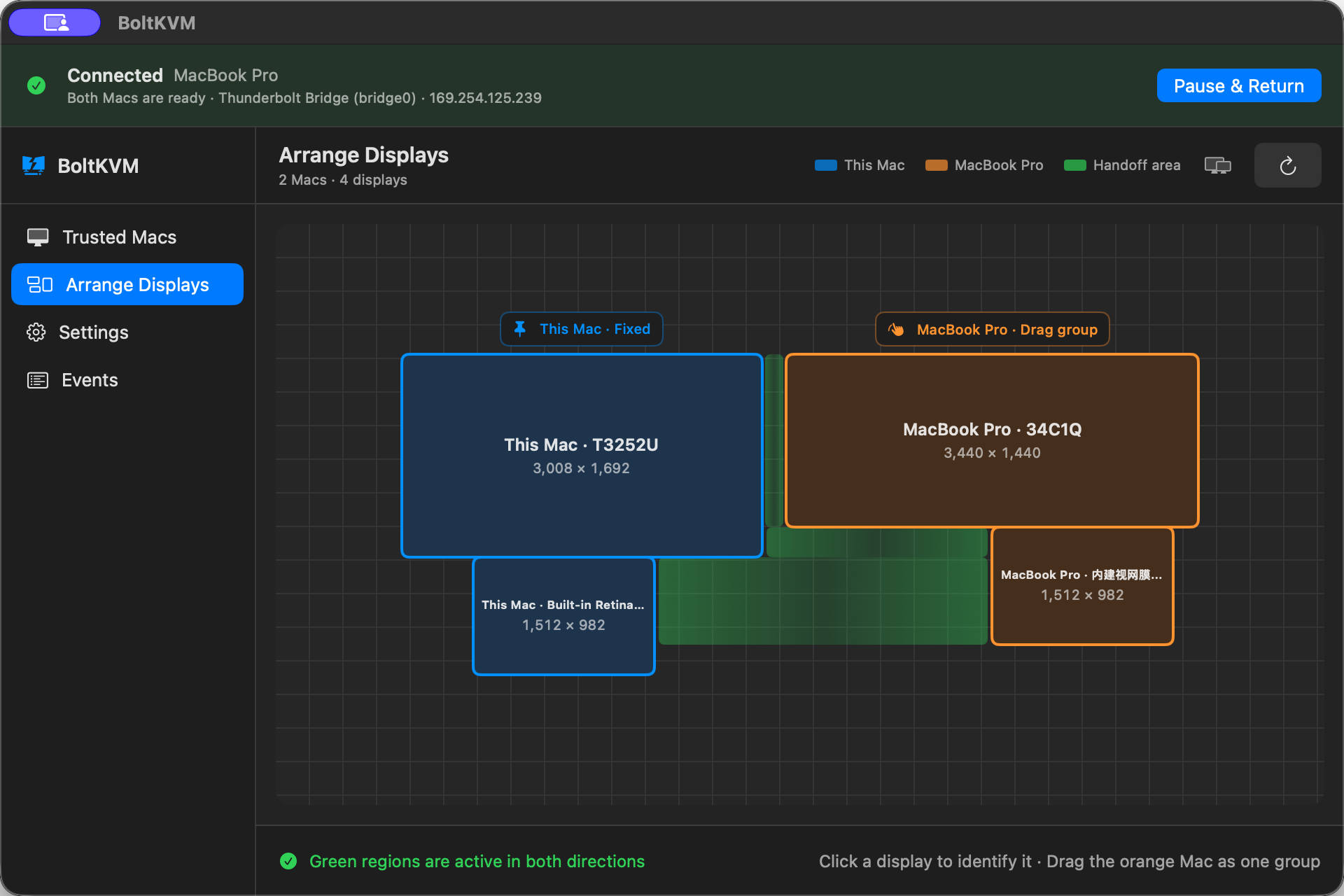
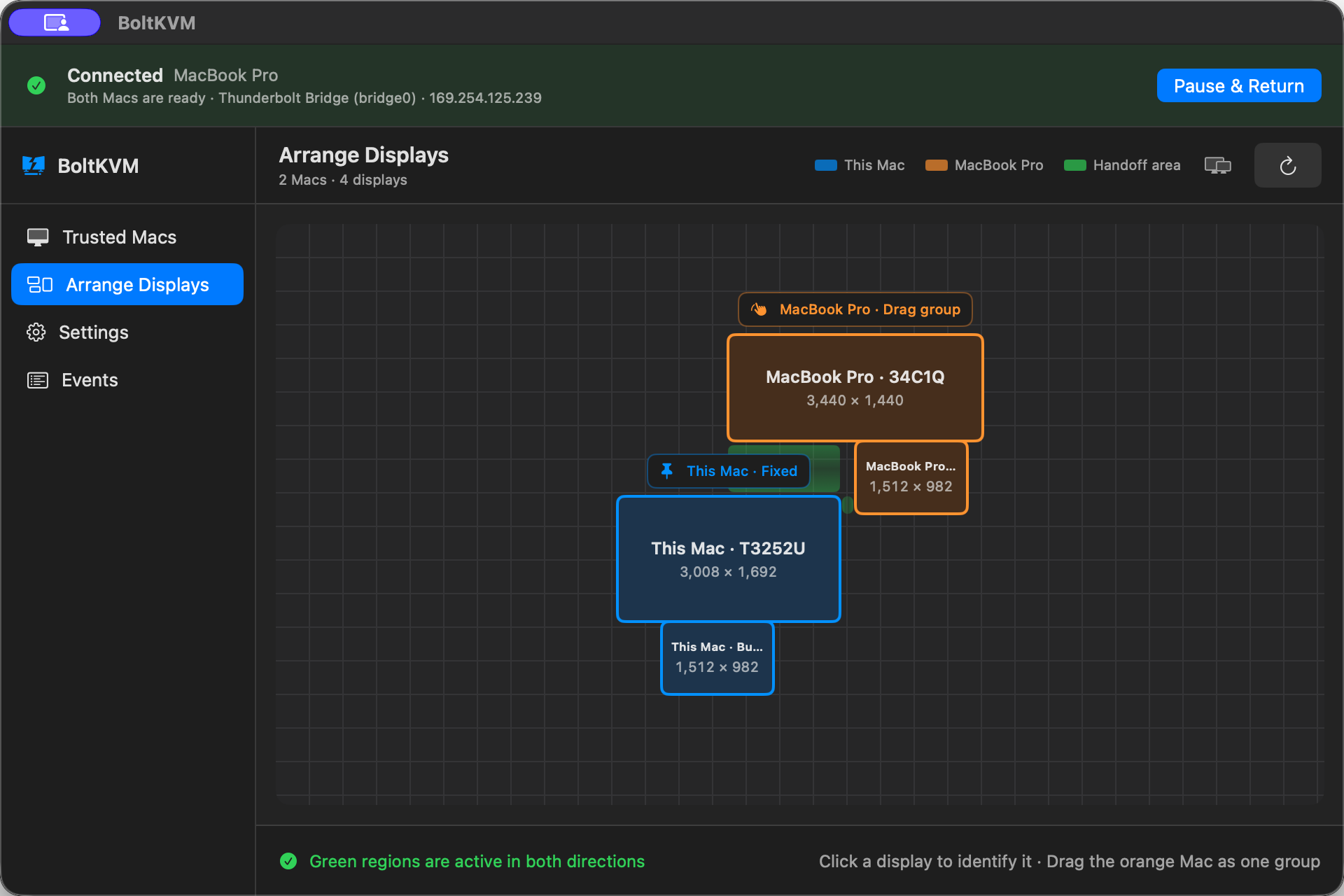
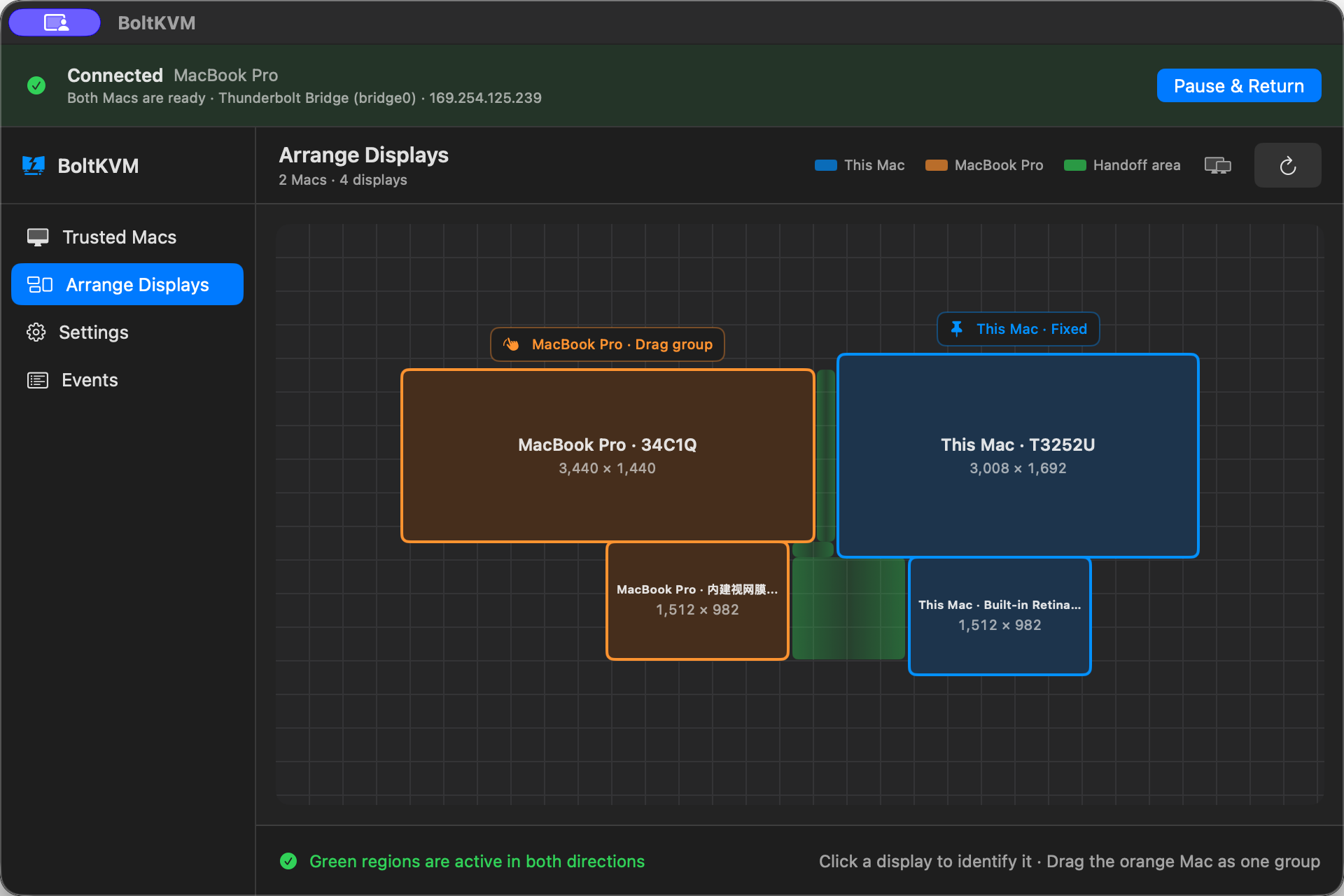
Arrange Mac displays to match your physical desk.
Keep this Mac fixed, move the other Mac's display group to match your desk, then align the edges you want to cross.
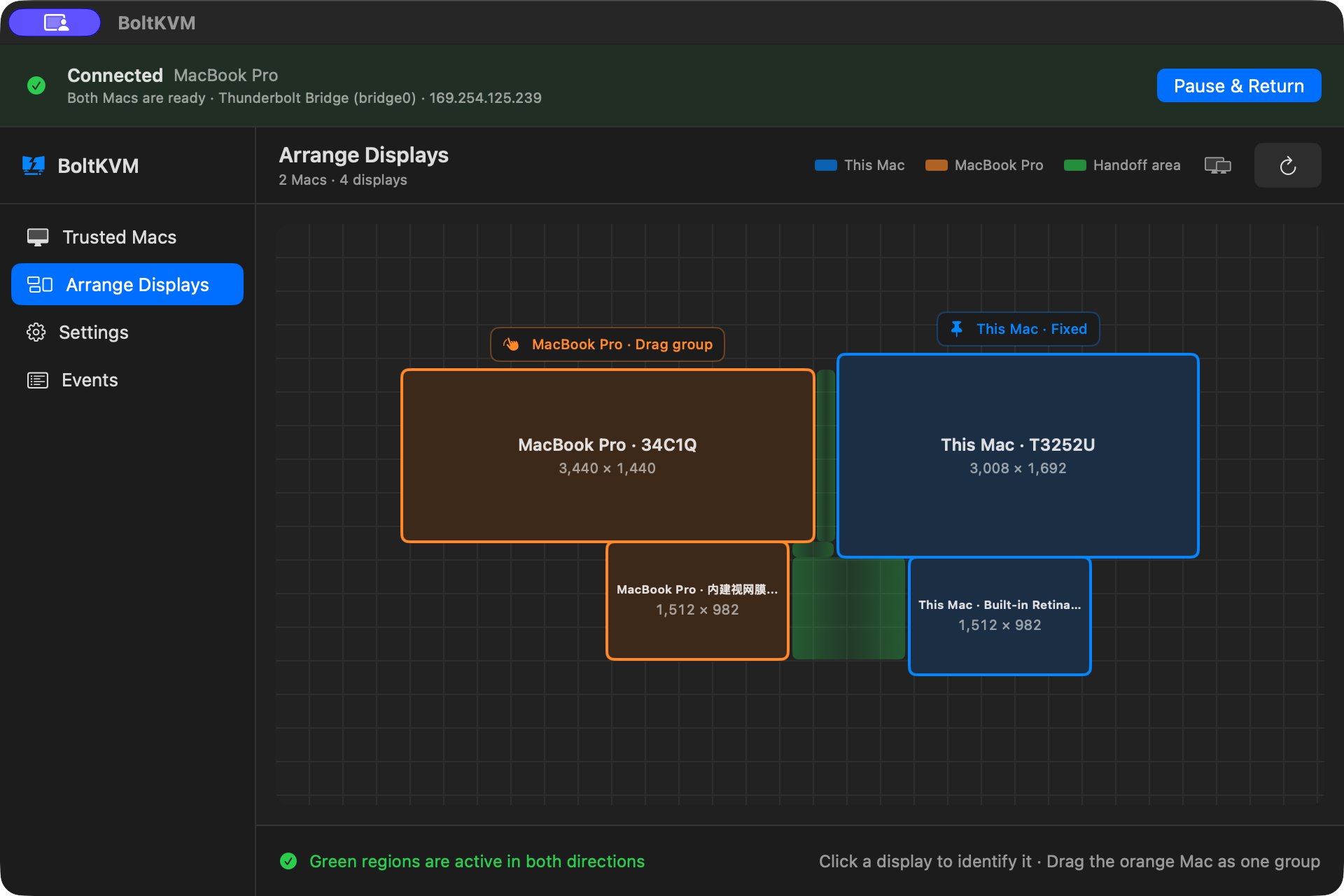
Match BoltKVM to your physical display layout.
Arranging a KVM should never mean filling in a form. In BoltKVM you move the other Mac's display group to match your desk. BoltKVM uses the aligned boundaries as the edges you can cross.
- One display per Mac, or several
- Only aligned, configured edges can be crossed
- Every Mac keeps its own macOS display arrangement
Share keyboard and pointer control in either direction.
There is no permanently controlling Mac. Either trusted Mac can initiate a pointer and keyboard handoff over Wi-Fi, Ethernet, or Thunderbolt Bridge.
- One active input destination at a time
- Physical input on the target keeps priority
- Only configured display edges accept a handoff
Copy, paste, or send one file between Macs.
Copy a URL on one Mac and paste it on the other. Send a file across with a deliberate single-file transfer. Data moves directly between trusted Macs on the local network; BoltKVM uses no cloud relay.
- Explicit bidirectional copy and paste
- Explicit single-file transfers, with no silent sync
- No folders, file batches, or drag-and-drop transfer
Keep input sharing on your local network.
BoltKVM is a local-network utility. Runtime pairing needs no shared Apple Account, uses no cloud relay, and never bypasses FileVault or any macOS security control.
- No product account; device data stays local
- No analytics or telemetry in the Mac app
- No cloud relay or screen streaming
- This website uses aggregate Cloudflare Web Analytics
Build the two-Mac desk that fits your work.
Detailed answers for software KVM, bidirectional input, local network paths, and multi-display layout.
BoltKVM compatibility, security, and limitations.
The capability boundaries worth knowing before you install.
F-01Do both Macs need to be signed in to the same Apple Account?
F-02Does it work over Wi-Fi?
F-03How many Macs can share one desk?
F-04Does anything leave my local network?
F-05What happens if a connection drops mid-switch?
F-06Can I use it with a locked Mac?
F-07Can I drag files across the display edge?
macOS requirements and review status.
Each Mac runs BoltKVM on macOS 14 or later, connects to the same local network, and grants the macOS permissions required to capture and send input.
Distribution review is pending. Download availability, pricing, licensing, and update details will be published after approval.